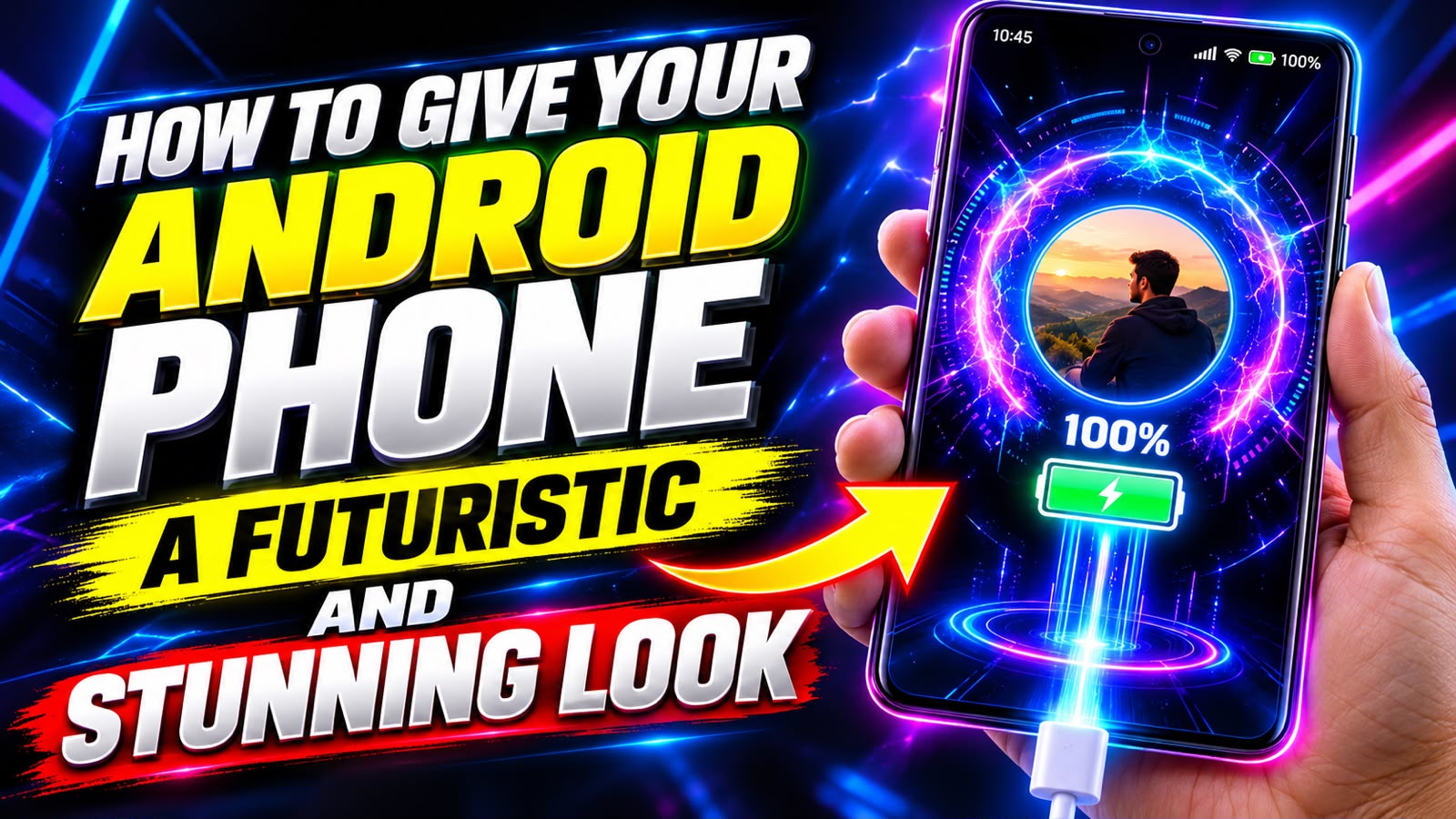
Do you want to make your Android phone look unique by displaying your own photo during charging? Setting your photo in a mobile charging animation is a fun way to personalize your smartphone. Instead of seeing the same default charging screen every time you connect your charger, you can customize the charging experience with your favorite picture, a family photo, a personal portrait, or a stylish wallpaper.
Many Android users search for ways to add their pictures to charging animations without spending money or changing complicated phone settings. Fortunately, several Android customization apps offer photo-based charging screens, animated effects, and battery charging displays.
In this guide, you will learn how to set your photo in a mobile charging animation, which methods you can try, how to customize the appearance, and how to avoid common problems. These steps are suitable for beginners, although the exact options may vary depending on your Android phone and software version.
What Is a Mobile Charging Animation?
A mobile charging animation is a visual effect that appears when you connect your phone to a charger. Depending on your smartphone, it may display a battery icon, a charging percentage, a glowing animation, or a special charging screen.
Some Android phones include built-in charging animations, while others allow users to customize only certain elements. Third-party applications can offer additional features, including personal photos, colorful effects, animated backgrounds, and charging notifications.
By using a compatible customization application, you may be able to display your own photo as part of a charging screen whenever your phone starts charging.
Method 1: Use a Charging Animation App
One of the easiest methods is to use an Android charging animation application. Some applications let you choose a personal photo and combine it with charging effects.
Step 1: Open the Google Play Store
Unlock your Android phone and open the Google Play Store. Search for terms such as “charging animation,” “photo charging screen,” or “battery charging animation.”
Review the available applications and select one that specifically supports custom photos. Not every charging animation app includes this feature.
Step 2: Install a Trusted Application
Before installing an app, check its recent reviews, developer information, update history, and requested permissions.
Choose an application that is compatible with your Android version and does not request unnecessary access to your personal information.
You do not need to root your Android phone for ordinary charging animation customization.
Step 3: Open the Charging Animation App
After installation, open the application and explore its main menu.
Depending on the app, you may find options such as:
- Charging animation
- Custom charging screen
- Photo animation
- Battery percentage display
- Animation effects
- Background customization
- Charging sound
The names and availability of these options vary between applications.
Step 4: Select Your Favorite Photo
Look for an option such as “Choose Photo,” “Custom Background,” “Gallery,” or “Set Image.”
Tap the option and select a picture from your phone’s gallery. You can use a selfie, a family picture, a favorite celebrity photo, or another image you have permission to use.
If Android asks for photo access, grant only the access required to select your chosen image. Where available, prefer selecting a single photo instead of giving the app access to your entire gallery.
Step 5: Adjust Your Photo
Once your photo is selected, use the available editing tools to position it correctly.
You may be able to crop the image, zoom in or out, adjust its position, or select a background effect. Try to keep the main subject near the center of the screen so it remains visible.
For the best result, choose a high-quality image that matches your phone’s screen orientation.
Step 6: Choose a Charging Animation
If the application supports animation effects, select your preferred style. Available designs may include glowing circles, colorful waves, neon effects, animated battery icons, or moving backgrounds.
You can also check whether the application lets you display your battery percentage alongside your picture.
Choose an animation that looks attractive without making the screen too crowded.
Step 7: Enable the Charging Screen
Some applications provide an activation button, while others require you to enable a charging-screen service or allow notifications.
Follow the instructions displayed inside the app. If it requires permission to display over other apps, review why that permission is needed before enabling it.
Now connect your charger and check whether the customized charging screen appears. If the feature does not start automatically, open the application and review its activation settings.
Method 2: Set a Personal Photo Using Your Phone’s Built-In Settings
Before installing a third-party application, check your Android phone’s built-in personalization settings.
Some smartphones include charging effects, lock-screen customization, or battery display options. However, setting a personal photo directly inside the charging animation is not a standard feature on every Android device.
Follow these general steps:
- Open your phone’s Settings.
- Look for Lock Screen, Wallpaper, Display, or Personalization.
- Check whether your phone offers charging effects or charging-screen customization.
- If a custom image option is available, select your favorite photo.
- Save the settings and connect your charger to test the result.
The available menus depend on your phone’s manufacturer, model, and Android version. If there is no option to use a personal photo, you may need a compatible charging animation application.
Changing your lock-screen wallpaper alone will not necessarily change the charging animation.
Method 3: Customize Your Charging Screen with Battery Effects
If you cannot find an application that supports your photo and animation style together, consider using a battery customization app that provides visual charging effects.
These applications may let you customize the appearance of the battery indicator, select animation colors, display charging information, or show a decorative screen when charging begins.
To try this approach:
- Search the Play Store for a battery animation or charging-screen customization app.
- Confirm that it supports your Android version.
- Open its settings and choose an available animation.
- Select a custom background or photo option if supported.
- Adjust the battery indicator and other visual elements.
- Connect your phone to a charger to test the effect.
Keep in mind that a battery animation application may not support personal photos. Check the app’s description and screenshots before installing it.
How to Make Your Photo Charging Animation Look Better
A few simple adjustments can make your personalized charging screen look more attractive.
Choose a High-Quality Photo
Use a clear image rather than a blurry or heavily compressed picture. A good-quality photograph will usually look better on a large smartphone display.
Use the Correct Image Orientation
Portrait images often work well for full-screen charging effects on vertically held phones. However, the ideal dimensions depend on your device and the application’s layout.
If your face or another important object is cut off, try cropping the photo or selecting a different image.
Select Attractive Animation Colors
Choose colors that complement your picture. For example, blue and purple effects can create a modern appearance, while warm colors can produce a softer look.
If the app supports brightness adjustments, avoid effects that make the photo difficult to see.
Keep the Screen Simple
Too many animated elements can distract from your photo. A clean background, a visible battery percentage, and one attractive animation may provide a better result than several competing effects.
Why Is My Photo Charging Animation Not Working?
Sometimes a charging animation application does not display the selected photo when you connect your charger. Several factors can cause this problem.
The Application Does Not Support Custom Photos
Some apps offer ready-made animations but do not allow users to upload their own pictures. Check the app’s settings and description to confirm that photo customization is supported.
The Required Permission Is Disabled
Some applications need notification access, display-over-other-apps permission, or permission to run a background service. The requirements depend on the app’s design.
Review each requested permission carefully. Avoid granting access that is unrelated to the feature you want.
Battery Optimization Stops the Application
Android may restrict background activity to improve battery life. If the application stops working, check its battery settings and follow the developer’s guidance. Do not disable important security protections unnecessarily.
Your Phone Uses Its Own Charging Screen
Some manufacturers control the charging screen through system software. A third-party application may not be able to replace that screen completely.
In this situation, check whether the app can display its animation while the phone is unlocked or whether your manufacturer offers a supported customization option.
The Photo Is Cropped Incorrectly
If only part of your picture appears, reopen the application and adjust the image position, crop, or zoom level.
Is It Safe to Use Charging Animation Applications?
Charging animation applications can be useful, but you should choose them carefully.
Download apps from trusted sources and check their privacy policies and permissions. A basic photo animation usually should not need access to your contacts, call history, or SMS messages.
Some applications request permission to appear over other apps or run in the background. These permissions can be legitimate for displaying a charging screen, but they also deserve careful review.
Avoid applications that display excessive advertisements, make misleading promises, or require you to install unknown files from unofficial websites.
Also, remember that animations that keep the screen illuminated for long periods may increase battery consumption. Choose a screen timeout or animation behavior that suits your needs.
Frequently Asked Questions (FAQs)
1. Can I set my own photo in my mobile charging animation?
Yes, on compatible Android phones and through applications that support custom photo backgrounds. Not every phone or charging animation app offers this feature.
2. Is it possible to set a charging animation for free?
Yes. Some applications offer basic charging animations and photo customization at no cost. Others may include advertisements, paid themes, or premium features.
3. Do I need to root my Android phone?
No. Most standard charging animation customization features do not require root access.
4. Will this method work on Samsung, Xiaomi, Infinix, and Tecno phones?
It may work on compatible models from these manufacturers, but availability depends on the Android version, system restrictions, and the chosen application.
5. Can I display my photo with a battery percentage?
Some applications support both a custom image and a battery percentage. Check the app’s features before installing it.
6. Does a charging animation work when my phone is switched off?
Not necessarily. Some applications work only while Android is running, and they cannot replace the manufacturer’s charging screen when the phone is powered off.
7. Will a charging animation drain my battery?
A short animation generally has a limited effect, but keeping the display on or running background services may consume additional power.
8. Can I use a video instead of a photo?
Some applications support animated backgrounds or video effects, while others accept only static images. Check the application’s supported formats and features.
Final Words
Setting your photo in a mobile charging animation is a simple way to personalize your Android phone and make charging more interesting. You can start by checking your phone’s built-in customization options or installing a trusted application that supports custom photo backgrounds.