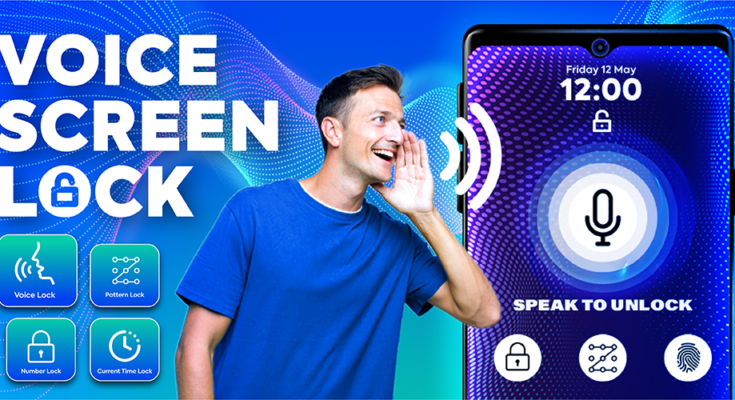
Have you ever wanted to lock your Android mobile phone using only your voice? Imagine being able to control your smartphone without touching the screen. Whether your hands are busy, your phone is placed across the room, or you simply want to try a smart Android trick, voice commands can make your mobile experience more convenient.
Many Android users already use Google Assistant and other voice-control features to perform tasks such as making calls, sending messages, opening applications, and setting alarms. However, locking your phone with a voice command is not supported in exactly the same way on every Android device.
In this guide, you will learn how to lock your Android mobile with voice commands, which tools you can use, how to configure them, and what you should know about mobile security. The methods explained below can help you explore voice-controlled locking without unnecessarily spending money on paid applications.
Can You Lock Your Android Phone with Your Voice?
Yes, voice-controlled phone locking is possible on some Android devices, but the method depends on your phone model, Android version, and available accessibility features.
Google Assistant can perform many hands-free tasks, but a direct command such as “Hey Google, lock my phone” does not work universally. Android generally restricts certain security-related actions, so you may need an accessibility service, a supported manufacturer feature, or a compatible automation application.
Before installing any application, check whether your smartphone already includes a built-in feature that supports screen locking through voice control.
Method 1: Use Google Assistant for Voice Control
Google Assistant is a convenient starting point for Android users who want to operate their phones using voice commands. Depending on your device and settings, it can help you access applications, manage everyday tasks, and control supported phone functions.
Follow these steps to check whether Google Assistant is available on your mobile.
Step 1: Open Google Assistant
Open the Google app or activate Google Assistant using the supported method on your device. Some phones support a wake phrase, while others may require a button or gesture.
Step 2: Enable Voice Activation
If your device supports voice activation, open the Google Assistant settings and look for the “Hey Google” or Voice Match option. Follow the instructions to configure voice recognition.
The exact menu names may vary depending on your Android version and Google app settings.
Step 3: Test a Basic Voice Command
Try a supported command such as “Hey Google, open Settings” or “Hey Google, set an alarm for 7 AM.”
If the command works, your voice-control feature is configured correctly.
Step 4: Check Locking Support
Try checking whether your phone’s assistant or manufacturer software supports locking the screen directly. If it does not, you will need another method.
Important: Google Assistant does not provide a universal, guaranteed voice command for locking every Android phone. If the direct locking command fails, do not assume your phone is faulty.
Method 2: Use Android Accessibility Features
Android includes accessibility tools designed to help users operate their phones without relying entirely on touch. These features can be especially useful for people who have difficulty using physical buttons or navigating a touchscreen.
One option is Voice Access, a Google accessibility tool available on compatible devices.
How to Set Up Voice Access
- Open the Google Play Store.
- Search for Google Voice Access.
- Check that the application is compatible with your phone and install it if available.
- Open your phone’s Settings.
- Find Accessibility and look for Voice Access.
- Enable the feature and follow the setup instructions.
- Review the available voice commands and test basic navigation.
The location of these settings can differ between Android manufacturers.
Voice Access allows users to interact with supported screen elements through speech. However, its ability to lock the screen directly depends on the available commands, Android restrictions, and device configuration.
If your phone does not expose a supported screen-lock action, you may need a different approach.
Security tip: Accessibility permissions can give an application substantial control over your device. Enable them only for trusted applications and disable access when it is no longer needed.
Method 3: Use a Compatible Screen-Lock Application
Another option is to use a trusted application that provides a screen-lock shortcut. Some Android utilities can lock the display with a single tap, while compatible automation tools may allow you to trigger that action using a configured voice phrase.
This method usually involves two parts: a screen-lock action and a way to activate it through voice control.
Steps to Follow
Step 1: Find a Trusted Application
Search the Google Play Store for a reputable screen-lock utility or an automation application that supports your Android version.
Read recent reviews, check the developer’s information, and review the permissions before installing anything.
Step 2: Configure the Screen-Lock Action
Follow the application’s instructions to create a screen-lock shortcut or action.
Some applications require accessibility access or device administrator privileges to lock the screen. These permissions should be granted only when you understand why they are needed.
Step 3: Configure Voice Activation
If the application supports voice triggers, configure a phrase such as “Lock my phone.” Otherwise, check whether a compatible automation tool can activate the screen-lock action through a supported assistant or voice-control integration.
Not every application supports this combination, so check compatibility before spending time configuring it.
Step 4: Test the Feature
Test the setup while your phone is unlocked. Confirm that the command activates the intended locking action and that you can unlock the device normally afterward.
Avoid granting unnecessary permissions or installing multiple applications that perform the same task.
Method 4: Check Your Phone’s Built-In Features
Some Android manufacturers offer additional shortcuts, gestures, accessibility options, or screen-lock controls. Depending on the model, these may provide a simpler alternative to installing third-party applications.
To check your phone, open Settings and explore the following sections:
- Accessibility
- Security and privacy
- Advanced features
- Gestures and shortcuts
- Lock screen
- Assistant or voice-control settings
These menu names are examples rather than a universal path. Your phone may use different labels or may not provide a voice-locking feature at all.
If you find a built-in screen-lock shortcut, check whether your device allows you to connect it to a voice command. Using a manufacturer-supported feature is generally preferable to granting broad permissions to an unfamiliar application.
Why Is Voice Locking Useful?
Voice-controlled screen locking can be helpful in several everyday situations.
Hands-free convenience: You can initiate a supported locking action without reaching for the power button.
Accessibility: Voice-control features may make phone operation easier for users who have difficulty pressing physical buttons or touching small screen elements.
Smartphone productivity: Voice commands can simplify certain repetitive tasks when combined with compatible automation features.
Reduced physical interaction: If your phone is resting on a desk or stand, voice control may let you perform supported actions without picking it up.
Remember that voice locking is a convenience feature, not a replacement for strong device security.
Is It Safe to Lock Your Phone with Your Voice?
Yes, voice-controlled locking can be safe when configured correctly. However, you should understand how your chosen application works.
Use a strong PIN, password, or pattern, and enable fingerprint or face unlocking if your device supports it. Keep Android and your applications updated to receive security fixes.
Be particularly careful with applications that request accessibility access or device administrator privileges. These permissions can allow sensitive actions, depending on the application and Android version.
Do not install unknown APK files from random websites simply because they promise one-click voice locking. Prefer trusted sources, review permissions, and remove applications you no longer need.
Also remember that locking the screen does not necessarily turn off your microphone or disable voice activation. If you are concerned about privacy, review your microphone permissions and assistant settings.
Common Problems and Their Solutions
Google Assistant Does Not Lock My Phone
This usually means your device or assistant configuration does not support that particular action. Try a compatible accessibility feature, a supported screen-lock utility, or your manufacturer’s built-in options.
Voice Access Is Not Available
Availability may depend on your Android version, language, region, or device compatibility. Check the Play Store and your phone’s accessibility settings for supported alternatives.
The Locking Application Requests Special Permissions
Some screen-lock tools need accessibility access or device administrator privileges. Review the application’s documentation and grant only the permissions necessary for its intended function.
The Voice Command Does Not Work When the Screen Is Off
Voice activation while the screen is off depends on the device, assistant settings, microphone behavior, and power-management restrictions. Some phones may not listen for commands in this state.
The Phone Locks but Does Not Unlock with Voice
Screen locking and secure unlocking are different functions. Android generally relies on a PIN, password, pattern, biometrics, or other supported authentication methods. Do not assume that a voice-locking feature also provides voice-based unlocking.
Frequently Asked Questions (FAQs)
1. Can I lock my Android phone by saying “Lock my phone”?
Possibly. The command works only if your device and configured software support it. Google Assistant does not universally support direct screen locking on every Android phone.
2. Is there a free way to lock an Android phone with voice?
Yes, you can start by checking built-in accessibility features and supported voice-control tools. Some compatible third-party applications also offer free screen-lock functions, although certain features may require payment.
3. Do I need to root my Android phone?
No. You generally do not need to root your phone to explore accessibility-based voice control or compatible screen-lock utilities.
4. Can I use this trick on Samsung, Xiaomi, Infinix, or Tecno phones?
The available options vary by model and Android version. Check your phone’s built-in accessibility and assistant settings first, then look for compatible applications if necessary.
5. Can I unlock my phone using my voice as well?
Secure voice-based unlocking is not universally supported. Most Android devices require a supported authentication method, such as a PIN, password, pattern, fingerprint, or face recognition.
6. Is Google Assistant enough to lock every Android phone?
No. Google Assistant can perform supported voice-controlled tasks, but direct screen locking is not available through one universal command across all Android devices.
Final Words
Locking your Android mobile with voice commands can make everyday phone use more convenient, especially when your hands are busy or you prefer hands-free controls. The best approach is to check Google Assistant, explore Android accessibility features, and look for a compatible screen-lock application if necessary.