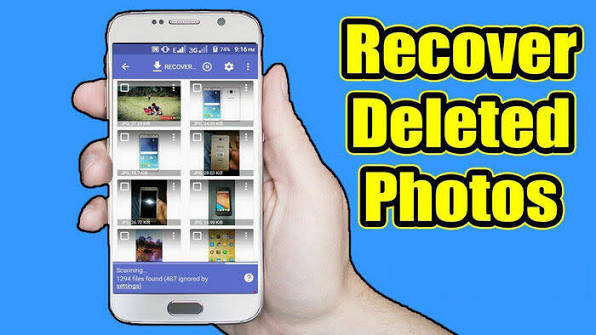
Have you accidentally deleted your favorite photos from your mobile phone and now want to get them back? Don’t worry! Losing important pictures can be frustrating, especially when they contain special memories, family moments, personal pictures, or important screenshots. Fortunately, there are several ways to recover deleted photos from your mobile phone without losing your other data.
Whether you are using an Android smartphone or an iPhone, you may be able to restore deleted pictures using your phone’s built-in Gallery, Google Photos, iCloud, or other backup options.
In this complete guide, you will learn how to recover deleted photos in your mobile phone, how to restore pictures from the trash folder, how to recover photos without a backup, and what to do if your pictures have been permanently deleted.
Let’s get started!
Can You Recover Deleted Photos from Your Mobile Phone?
Yes, you can often recover deleted photos from your mobile phone, especially if they were recently deleted.
Most smartphones have a Recently Deleted, Trash, or Recycle Bin folder that temporarily stores deleted pictures before removing them permanently. This feature gives users an opportunity to restore accidentally deleted images.
For example, Google Photos generally keeps backed-up deleted pictures in the Trash for up to 60 days, while pictures that were not backed up may remain there for up to 30 days. However, the exact recovery period can depend on the app and backup status.
If your pictures are still available in the Trash folder, you can restore them without installing any additional application.
If the photos have already been permanently deleted, recovery becomes more difficult. Your chances depend on whether another backup exists and whether the original data has been overwritten.
Method 1: Recover Deleted Photos from Google Photos
Google Photos is one of the easiest ways to recover deleted pictures on an Android phone.
If you previously enabled Google Photos backup, your pictures may still be available in the Trash even after deleting them from your mobile Gallery.
Follow these simple steps:
- Open the Google Photos application on your mobile phone.
- Make sure you are signed in to the correct Google account.
- Tap the Collections option at the bottom of the screen.
- Open the Trash or Bin folder.
- Find the pictures you want to recover.
- Select the deleted photos.
- Tap Restore.
Your selected pictures should return to your Google Photos library and may also appear in your phone’s Gallery, depending on the image and device.
Important: If you cannot find your deleted pictures, check whether you are using the same Google account that originally backed them up.
This is one of the best methods for recovering deleted photos without downloading any additional recovery application.
Method 2: Recover Deleted Photos from Your Mobile Gallery
Many Android smartphones have a built-in Recently Deleted or Recycle Bin feature.
Depending on your mobile brand, this feature may be available in Samsung Gallery, Xiaomi Gallery, OPPO Photos, Vivo Albums, or another default Gallery application.
Here is how you can check:
- Open the Gallery or Photos application on your mobile phone.
- Tap Albums or the menu option.
- Look for Recently Deleted, Trash, or Recycle Bin.
- Open the folder.
- Select the pictures you accidentally deleted.
- Tap Restore or Recover.
Your deleted pictures should return to their original album or Gallery location.
The exact steps may differ depending on your mobile phone model and software version.
If you cannot find the Recently Deleted folder, check your Gallery settings or search for the recycle bin option.
Method 3: Recover Deleted Photos from Samsung Mobile
Samsung Galaxy smartphones provide a built-in Gallery Trash feature that can help users restore deleted pictures.
If you are using a Samsung mobile phone, try the following steps:
- Open Samsung Gallery.
- Tap the menu button.
- Select Trash or Recycle Bin.
- Find your deleted photos.
- Select the pictures you want to restore.
- Tap Restore.
If the pictures are still available in the Trash, they should return to your Gallery.
Samsung’s Gallery Trash generally keeps deleted pictures temporarily, so it is important to check this folder before the retention period expires.
If you have deleted pictures from Samsung Gallery and cannot find them, check whether you previously synced your photos with OneDrive or another backup service.
Method 4: Recover Deleted Photos from Xiaomi, Redmi, and Other Android Phones
If you are using a Xiaomi, Redmi, OPPO, Vivo, Realme, or another Android smartphone, your Gallery application may provide a deleted-photo recovery option.
The steps are usually similar:
- Open your phone’s Gallery application.
- Go to Albums.
- Find the Recently Deleted or Trash folder.
- Open the folder.
- Select your deleted pictures.
- Tap Restore.
Some mobile phones may use different names for this feature.
If your Gallery does not have a Trash folder, open Google Photos and check whether your pictures were backed up automatically.
You should also check your phone manufacturer’s cloud service if you previously enabled photo synchronization.
Method 5: Recover Deleted Photos from iPhone
If you are using an iPhone, you can recover recently deleted pictures through the Photos application.
Apple provides a Recently Deleted album where deleted photos and videos are temporarily stored.
Follow these steps:
- Open the Photos application.
- Scroll down to the Utilities section.
- Open Recently Deleted.
- Unlock the album if required.
- Select the pictures you want to recover.
- Tap Recover.
Your pictures should return to your photo library.
On supported iPhones, deleted photos generally remain in Recently Deleted for up to 30 days before being permanently removed.
If your photos are not available in Recently Deleted, check your iCloud Photos library and any available backups.
Method 6: Recover Deleted Photos Using Cloud Backup
Sometimes your deleted pictures may not be available in your mobile Gallery or Trash folder.
However, you may still have a backup stored in a cloud service.
Popular backup options include:
- Google Photos
- iCloud Photos
- Samsung Cloud, where supported
- OneDrive
- Other cloud storage applications
To recover your pictures, open the cloud service you previously used and sign in with your original account.
Check your photo library, backup folders, and deleted items.
If your pictures were synchronized before deletion, you may be able to download them again.
Keep in mind that synchronization and backup are not always the same. In some services, deleting a picture from one device can also delete it from the synchronized cloud library.
Therefore, check the service’s Trash or Recently Deleted folder before assuming your pictures are permanently gone.
Method 7: Recover Deleted Photos Without a Backup
What should you do if you deleted your pictures and never enabled Google Photos backup?
First, check your phone’s Gallery Trash and any other photo applications you have used.
If the pictures are not available, check whether they were saved somewhere else.
For example:
- Open your File Manager and check the Pictures folder.
- Check the DCIM folder.
- Look inside the Camera folder.
- Check WhatsApp Images if the pictures came from WhatsApp.
- Check Telegram or other messaging applications.
- Look for copies in Downloads or another storage folder.
Sometimes users accidentally delete pictures from one album while another copy still exists somewhere on the phone.
If you cannot find any copy, you may consider a reputable photo recovery application.
However, photo recovery apps cannot guarantee that permanently deleted pictures will be recovered.
Modern Android phones use encryption, flash storage management, and other security features that can make recovery difficult.
Many recovery applications can only find existing thumbnails, cached images, or pictures that are still accessible.
Be careful when installing recovery apps. Avoid applications that request unnecessary permissions, promise guaranteed recovery of every deleted picture, or ask you to upload private photos to unknown servers.
Method 8: Recover Deleted Photos Using a Computer
If your deleted pictures were stored on a removable SD card, you may be able to use a computer-based recovery tool.
This method is mainly useful for memory cards because they can sometimes be scanned independently.
Follow these steps:
- Remove the memory card from your mobile phone.
- Insert it into a card reader.
- Connect the card reader to your computer.
- Use a reputable file recovery program.
- Scan the memory card for recoverable pictures.
- Select the pictures you want to recover.
- Save the recovered files to your computer or another storage device.
Do not save recovered pictures directly to the same memory card because doing so could overwrite other recoverable data.
For photos stored in your phone’s internal storage, computer-based recovery is generally more complicated. Connecting an Android phone through USB does not automatically give recovery software access to deleted internal storage data.
Why Are Permanently Deleted Photos Difficult to Recover?
When you delete a picture, your phone may initially move it to a Trash folder.
After you permanently delete it, the operating system may mark its storage space as available for future use.
If new pictures, applications, or other files are saved, they may overwrite the deleted photo’s data.
Once the original data has been overwritten, recovering the complete picture may no longer be possible.
Modern smartphones also use storage technologies that can make deleted-data recovery difficult.
This is why checking your backup and Trash folders immediately is usually the best approach.
Important Tips Before Recovering Deleted Photos
If you accidentally deleted important pictures, follow these tips:
1. Stop taking new pictures
Avoid taking additional photos or downloading large files until you have checked your recovery options.
2. Check the Trash folder first
Your phone’s built-in recovery feature is usually the safest and easiest option.
3. Check your backup account
Make sure you are signed in to the correct Google or Apple account.
4. Avoid unnecessary recovery applications
Only install trusted applications from official app stores.
5. Do not factory reset your phone
A factory reset can remove additional data and make recovery more difficult.
6. Keep your photos backed up
Enable automatic backup to protect your pictures against accidental deletion and device damage.
How to Prevent Losing Photos in the Future
Recovering deleted pictures is not always possible, so prevention is important.
Here are some simple ways to protect your photos:
Enable Google Photos Backup
Open Google Photos, tap your profile picture, and check the Backup settings.
Enable backup if you want your pictures to be stored in your Google account.
Make sure you have enough available cloud storage.
Use iCloud Photos on iPhone
If you use an iPhone, check your iCloud settings and enable photo synchronization if it suits your needs.
Remember that synchronized deletion may affect your other connected devices.
Keep Important Pictures in Multiple Locations
For important memories, consider maintaining an additional copy on a computer, external drive, or another trusted storage service.
Having more than one copy can help protect your pictures if your phone is lost, damaged, or reset.
Final Words
Accidentally deleting important pictures from your mobile phone can be stressful, but there is still a chance that you can recover them.
The easiest solution is to check your phone’s Recently Deleted folder or Google Photos Trash. If you are using an iPhone, check the Recently Deleted album and your iCloud account.
If your pictures are not available there, check other backup services, your File Manager, and any memory card you have used.
Remember that permanently deleted photos are not always recoverable, especially if their original data has been overwritten.
The best way to protect your memories is to enable automatic photo backup and keep an additional copy of your important pictures.